4. Deploying to Railway
Now you wire your Flask app into Railway's CI/CD pipeline and take it from local project to live production URL.
Section 3 left you with:
- an app that fails fast on missing config
- a
requirements.txtRailway can install - a Gunicorn command Railway can run
In this section, you'll:
- connect GitHub
- set environment variables
- mount a persistent
/datavolume for SQLite - generate the production domain
- register the HTTPS redirect URI with Spotify
- verify the deploy end-to-end
Six steps that will take you twenty to thirty minutes.
The first deploy will fail. That's expected, and the failure is itself a verification that your Config class is doing its job.
The automatic deployment pipeline
Once your repository is connected, every code change follows this automated professional workflow:
- You run
git push origin main. - GitHub receives the code and notifies Railway via webhook.
- Railway builds from
requirements.txt. - Gunicorn starts the Flask app with your configured start command.
- The live URL moves to the new container, typically within 60-90 seconds for a small Flask app.

The six concrete steps below take 20-30 minutes the first time. If Railway tries to start the app before the variables exist, the first deployment will fail because Railway doesn't have your environment variables yet; you'll fix the configuration in step 2, and subsequent deploys will succeed automatically whenever you push to GitHub.
Step 1: Create account and connect repository
Go to https://railway.app and sign up using your GitHub account. Railway uses GitHub OAuth for authentication, which simplifies the process and enables automatic deployments.
After authorization, click "New Project" and select "Deploy from GitHub repo." Choose your Music Time Machine repository. Railway immediately begins building and deploying.
This first deployment may fail. That's normal and expected if Railway tries to start the app before you add environment variables. Your application requires values like SECRET_KEY and Spotify credentials. The Config class you wrote is doing its job by refusing to start without proper configuration.
Expected First Failure
Click your service name, select the "Deployments" tab, and view the latest deployment logs. If the service started before variables were set, you'll see Railway installing packages successfully, then your app crashing with "ValueError: SECRET_KEY environment variable must be set". This confirms your configuration validation works correctly.
Step 2: Configure environment variables
Click your service in the Railway dashboard, then select the "Variables" tab. Add these environment variables:
ENVIRONMENT=production
SECRET_KEY=
SPOTIFY_CLIENT_ID=
SPOTIFY_CLIENT_SECRET=
DATABASE_PATH=/data/music_time_machine.db
Generate a strong secret key:
python -c "import secrets; print(secrets.token_hex(32))"Don't set SPOTIFY_REDIRECT_URI yet. You need Railway's generated URL first, which you'll get in Step 4.
After adding these variables, Railway triggers a new deployment automatically. This deployment will still fail (missing redirect URI), but you're getting closer.
Step 3: Create the persistent volume
Without a persistent volume, Railway's filesystem resets on every deployment, deleting your database. This is the most critical configuration for SQLite applications.
From your service dashboard, add a volume to the Flask service and enter /data as the mount path. Railway's UI may expose this from the project canvas or the service settings, depending on the current dashboard layout; the important part is the mount path.
Railway creates persistent storage at /data that survives deployments. Your database at /data/music_time_machine.db (specified in DATABASE_PATH) will persist indefinitely.
Mount Path vs Database Path
The mount path is a directory (/data), not a file. Railway mounts the entire directory as persistent storage. Your application creates music_time_machine.db inside that directory. The whole /data directory persists across deployments.
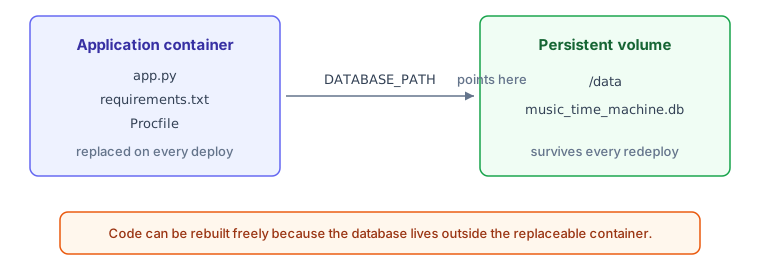
Visualizing persistence: the /data mount
Think of your deployment as two separate layers:
- Application: The app container is rebuilt from Git on every deploy.
- Volume: The mounted
/datavolume is separate, so/data/music_time_machine.dbsurvives when the code layer is replaced.
Step 4: Generate the domain and update OAuth
In the "Settings" tab, find the "Networking" section and click "Generate Domain." Railway assigns a URL like music-time-machine-production.up.railway.app. Copy this URL.
Update Spotify Developer Dashboard:
Visit https://developer.spotify.com/dashboard, select your application, click "Edit Settings," and add your production callback URL to Redirect URIs:
https://music-time-machine-production.up.railway.app/callback
Keep your local 127.0.0.1 redirect URI registered too. This lets you develop locally and test in production with the same Spotify application.
Add SPOTIFY_REDIRECT_URI to Railway:
Return to Railway's Variables tab and add the production redirect URI:
SPOTIFY_REDIRECT_URI=https://music-time-machine-production.up.railway.app/callbackThis must match exactly what you registered in Spotify's dashboard. Railway triggers another automatic deployment.
Step 5: Verify the deployment
Go to the "Deployments" tab and watch the latest deployment. You should see:
- Building: Railway installs Python and packages from requirements.txt (30-60 seconds)
- Starting: Gunicorn starts and loads your Flask app (5-10 seconds)
- Running: Deployment status shows "Active" with a green indicator
Open your Railway URL in a browser. You should see your Music Time Machine home page.
Test OAuth: Click the login button to trigger Spotify authentication. You should redirect to Spotify's authorization page, grant permissions, and redirect back to your dashboard successfully.
Test Database Persistence: Generate a test playlist or perform an action that writes to the database. Then make a minor code change, commit, and push to GitHub to trigger redeployment. After the new deployment finishes, verify your data still exists.
Step 6: Monitor your application
Familiarize yourself with Railway's dashboard:
Logs Tab: Real-time application logs showing print statements, errors, and request logs. Use this for debugging production issues.
Metrics Tab: Resource usage over time (CPU, memory, network, disk). Track these to understand your application's consumption and predict when you'll exceed the usage included in your current plan.
Deployments Tab: History of all deployments with timestamps and status. Compare successful deployments against failed ones to identify what changed.
Check usage by clicking your profile icon and selecting "Usage." A small Music Time Machine deployment should fit comfortably inside Hobby's included monthly usage when traffic is light, but treat the dashboard as the source of truth because pricing and usage limits change.
Troubleshooting common issues
Even with careful preparation, problems occur. Here are solutions to the six most common Railway deployment issues:
Build Fails: "ModuleNotFoundError"
Cause: Package missing from requirements.txt or wrong package name.
Solution: Check error logs for the missing module name. Add it to requirements.txt with correct spelling. Commit and push. Railway redeploys automatically.
App Crashes: "Missing environment variable"
Cause: Required environment variable not set in Railway's Variables tab.
Solution: Review error logs to identify the missing variable. Check your .env.example file for required variables. Add each to Railway's Variables tab with valid values.
OAuth Fails: "redirect_uri_mismatch"
Cause: SPOTIFY_REDIRECT_URI doesn't exactly match what's registered in Spotify Developer Dashboard.
Solution: Copy both URIs into a text editor and compare character-by-character. Check for trailing slashes (callback vs callback/), protocol mismatches (http vs https), and typos. Update whichever is wrong.
Database Resets After Deployment
Cause: Database file not in persistent volume, stored in ephemeral filesystem instead.
Solution: Verify the volume exists, is attached to the Flask service, and mounts at /data. Confirm DATABASE_PATH environment variable points to /data/music_time_machine.db. Fix and redeploy.
"Permission denied" Writing Files
Cause: Application tries to write outside the mounted persistent volume. Railway's filesystem is read-only except for volumes.
Solution: Identify which file caused the error (logs show the path). Ensure all file writes go to /data directory. Update file paths to use the persistent volume.
Operations Timeout After 30 Seconds
Cause: Gunicorn's default timeout (30 seconds) is too short for slow Spotify API calls or large playlist generation.
Solution: Update your Procfile or Railway Start Command to increase timeout: web: gunicorn app:app --bind 0.0.0.0:$PORT --timeout 120. Commit and push to redeploy.
Reading Logs Effectively
Railway logs include timestamps, log levels (INFO, ERROR), and message sources. Look for ERROR level messages first. Python stack traces show which file and line caused problems. Use browser search (Ctrl+F / Cmd+F) to find specific error messages or variable names in lengthy logs.
You're live
Your Music Time Machine is now deployed and accessible to anyone with the URL. Every time you push to GitHub's main branch, Railway rebuilds and redeploys automatically. This workflow mirrors professional development practices.
The remaining sections of this chapter cover creating professional portfolio materials to showcase your deployed application: compelling README files, demo videos, architecture diagrams, and interview preparation using the STAR method. These materials transform your deployed app into a portfolio piece that gets you interviews.