5. PostgreSQL fundamentals
Section 4 proved PostgreSQL works. This section explains why the move solves the concurrency problems SQLite couldn't, what changes about your connection code, and how to keep credentials out of source control before you start migrating real data.
Architecture: client-server vs embedded
The fundamental difference between SQLite and PostgreSQL is architectural. Understanding this difference helps you understand why migration solves concurrency problems.
SQLite (embedded architecture). Your Python application opens a database file directly, reads and writes to it, then closes the file. The database code runs inside your application's process. There is no separate database program running. This is like having a notebook only you can write in: when you're using it, nobody else can.
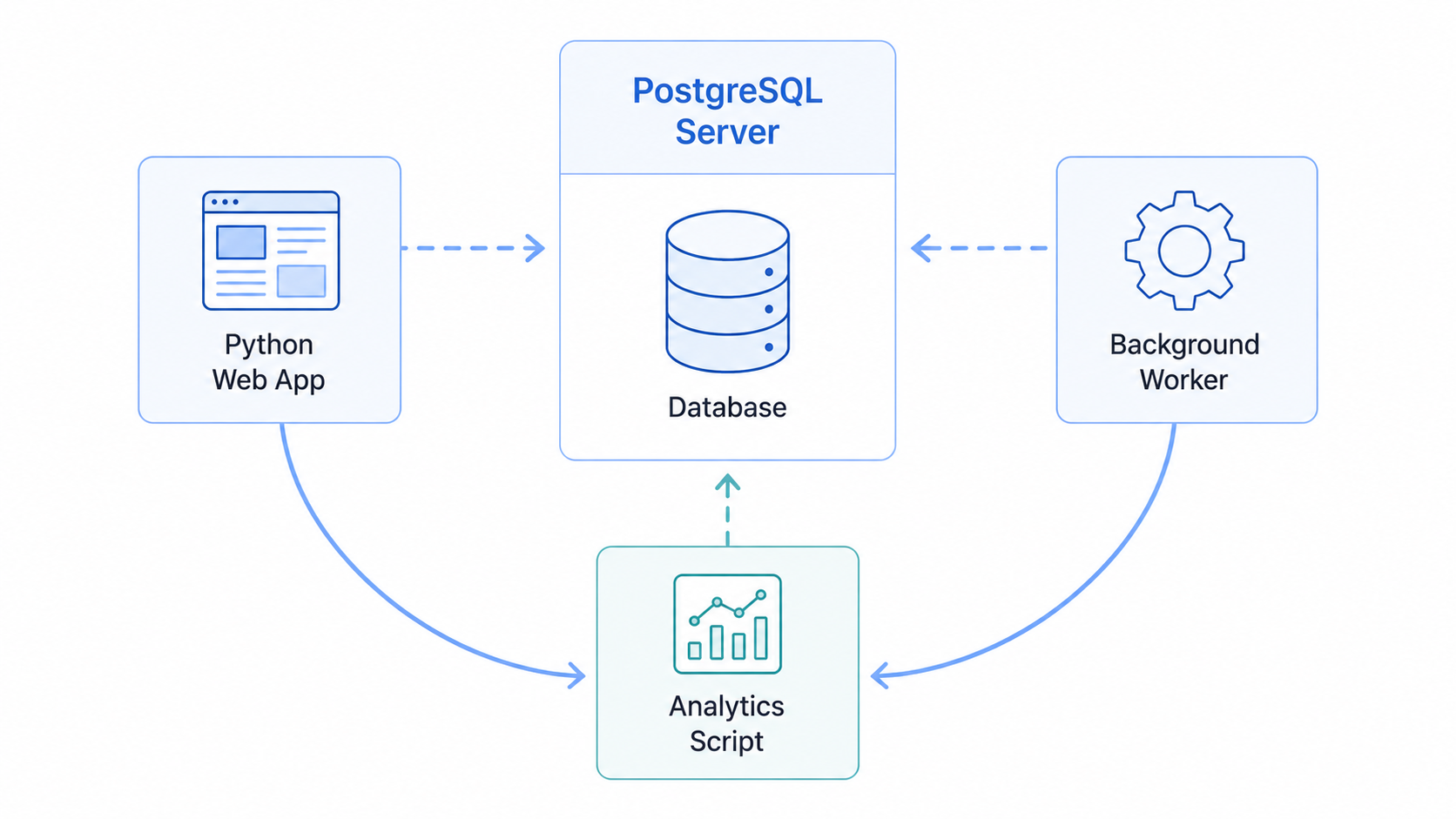
PostgreSQL (client-server architecture). PostgreSQL runs as a separate server process that's always running, listening for connections. Your Python application connects to this server over a network socket (even if it's on the same machine) and sends SQL commands. The server executes those commands and returns results. Multiple applications can connect simultaneously, and the server coordinates all access. This is like having a librarian who manages a shared resource and handles multiple people's requests at once.
What this means for your code
With SQLite, you connect to a file:
conn = sqlite3.connect('weather.db') # Opens a fileWith PostgreSQL, you connect to a server:
conn = psycopg2.connect(
    host='localhost',
    database='weather',
    user='your_username',
    password='your_password',
)  # Connects to a running server process
The SQL you write stays mostly the same. The connection string is what changes.
| Feature | SQLite | PostgreSQL |
|---|---|---|
| Architecture | Embedded (runs in your app) | Client-server (separate process) |
| Setup | Import sqlite3 (built into Python) |
Install server + Python driver (psycopg2) |
| Connection | File path | Host, port, database name, credentials |
| Concurrent writers | One at a time (blocking) | Thousands simultaneously |
| Network access | File must be local | Connect from anywhere |
| Data storage | Single file | Managed file structure |
| Backup | Copy the file | pg_dump / pg_restore commands |
Setting up PostgreSQL locally
By now you should have PostgreSQL running locally and a project database created. If you followed Section 4, you already created a dedicated database and user for this chapter. It helps to know what's actually running:
- Server process. The PostgreSQL service listening on a port (usually 5432).
- Database. A named database inside the server, such as
weather_db. - Role (user). The account that logs in, such as
weather_user.
The fastest way to confirm your setup is to run a simple query with psql:
psql -h localhost -U weather_user -d weather_db -c "SELECT current_database(), current_user;"If that works, your Python code will work once it uses the same credentials.
Connecting from Python
When you connect to PostgreSQL from Python, you are not opening a file. You are opening a network connection to a server process. That server can handle many clients at once, which is why PostgreSQL scales in a way SQLite cannot.
A PostgreSQL driver, such as psycopg2, does two main jobs:
- Create a connection to the server using host, port, database name, and credentials.
- Send SQL to the server and receive results.
Two practical differences from SQLite matter immediately:
- Placeholders. SQLite uses
?.psycopg2uses%s. - Transactions. PostgreSQL writes are transactional. If you do not commit, your changes may not persist.
A good default: use environment variables for credentials and wrap database work in context managers. That gives you automatic commits on success and rollbacks on failure.
Context managers and best practices
PostgreSQL connections work similarly to SQLite connections, but with one critical difference: you must explicitly commit transactions. SQLite in autocommit mode (the default) commits after each statement automatically, but PostgreSQL requires you to call conn.commit() to save changes. Save the following pattern as connection_pattern.py:
import psycopg2

# Establish connection (persists across operations)
conn = psycopg2.connect(
    host='localhost',
    database='weather_db',
    user='your_username',
)

try:
    # Create cursor for this operation
    with conn.cursor() as cursor:
        cursor.execute("""
            CREATE TABLE IF NOT EXISTS weather_history (
                id SERIAL PRIMARY KEY,
                location VARCHAR(100),
                temperature NUMERIC(5, 2),
                conditions TEXT,
                timestamp TIMESTAMP WITH TIME ZONE
            )
        """)

        # Insert data
        cursor.execute("""
            INSERT INTO weather_history (location, temperature, conditions, timestamp)
            VALUES (%s, %s, %s, CURRENT_TIMESTAMP)
        """, ('Dublin', 12.5, 'Cloudy'))

    # Commit changes - REQUIRED for PostgreSQL
    conn.commit()
    print("Data saved successfully")

except psycopg2.Error as e:
    # Roll back on error
    conn.rollback()
    print(f"Database error: {e}")

finally:
    # Close connection when done
    conn.close()
Key differences from SQLite
Four things in connection_pattern.py would have looked different in SQLite:
- Placeholder syntax. PostgreSQL uses
%sfor parameters, not?like SQLite. - Explicit commits. You must call
conn.commit()to save changes. Forgetting this means your data disappears when the connection closes. - Data types. PostgreSQL uses
SERIALfor auto-incrementing IDs (notINTEGER PRIMARY KEY AUTOINCREMENT),VARCHARinstead ofTEXTfor strings with length limits, andNUMERICfor precise decimals. - Timezone awareness.
TIMESTAMP WITH TIME ZONEstores timestamps with timezone information, avoiding the UTC conversion issues common in distributed applications.
Managing credentials with python-dotenv
Saying "use environment variables" without showing how is a common source of confusion. The standard Python approach is python-dotenv, which loads variables from a .env file.
Install it (you already did this in Section 4 alongside psycopg2-binary, but here it is on its own):
pip install python-dotenv
Create a .env file in your project root directory. The one you created in Section 4 covers the basics; here's a slightly fuller version that also shows the DATABASE_URL shape some deployment platforms expect:
# Database configuration
DB_HOST=localhost
DB_NAME=weather_db
DB_USER=your_username
DB_PASSWORD=your_password

# Or use a complete connection string
DATABASE_URL=postgresql://your_username:your_password@localhost:5432/weather_db
Load these variables at the start of your application. Save this as connection_pattern.py (updated) to keep alongside the earlier version, or modify the original in place:
import os
import psycopg2
from dotenv import load_dotenv

# Load environment variables from .env file
load_dotenv()

# Now os.getenv() works as expected
conn = psycopg2.connect(
    host=os.getenv('DB_HOST'),
    database=os.getenv('DB_NAME'),
    user=os.getenv('DB_USER'),
    password=os.getenv('DB_PASSWORD'),
)

# Or use the full connection string
# conn = psycopg2.connect(os.getenv('DATABASE_URL'))

print("Connected successfully!")
conn.close().env file
Your .env file contains credentials and must never be committed to version control. Create or update your .gitignore:
# .gitignore
.env
*.env
.env.local
Create a .env.example file (without real credentials) so teammates can see what variables are needed:
# .env.example
DB_HOST=localhost
DB_NAME=your_database_name
DB_USER=your_username
DB_PASSWORD=your_password
This approach works locally and in production. Deployment platforms like Railway, Render, and Heroku let you set environment variables through their web interfaces, keeping credentials secure without hard-coding them.
You now have the connection pattern you'll use for the rest of the chapter. Next, you'll plan a real migration: analyse a SQLite schema, map every type to its PostgreSQL equivalent, and follow the four-phase workflow that keeps a migration safe.