Free Guide
Deploy a Flask App: A Practical First-Deployment Walkthrough
During local development, Flask can run your app with its built-in development server. That is useful while you are writing code, but it is not the server you want handling public traffic. Deploying a Flask app means moving it from your laptop to a public environment that can install its dependencies, start it with a production WSGI server such as Gunicorn, and keep it available for incoming requests.
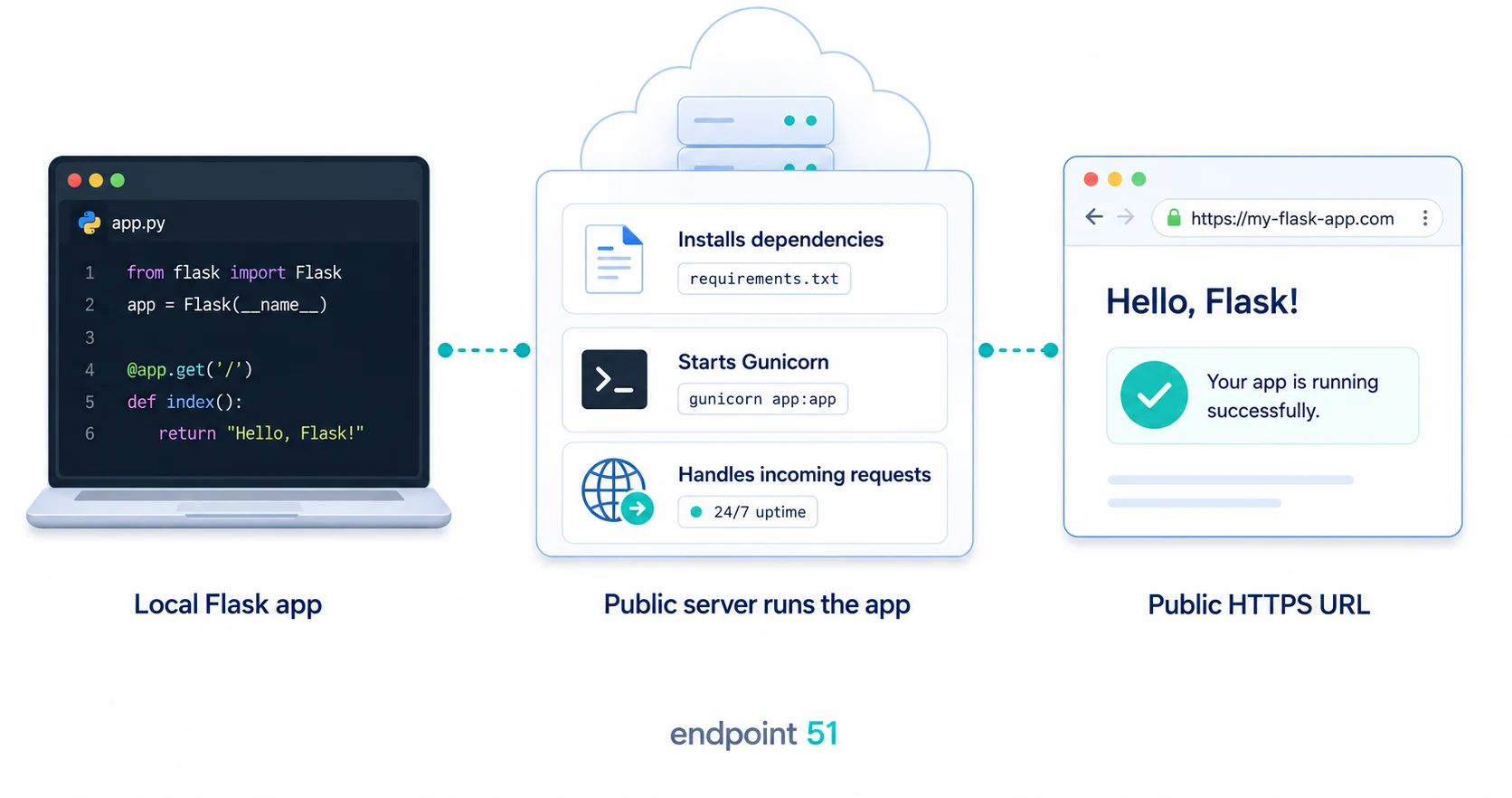
Choose a deployment route
There are several ways to provide that public environment. You can rent a Linux server and manage it yourself, package the app as a container, or use a managed application platform. All three can run Flask; they differ in how much infrastructure you have to configure and maintain.
This guide takes the managed-platform route, using services such as Render or Railway as examples. It is a good fit for a first deployment because the provider handles most of the server administration. You supply the code, dependencies, start command, and configuration; the platform builds the app, runs it, and gives you a public URL.
The guide is provider-neutral rather than infrastructure-neutral. Dashboards, pricing, and exact setup fields change between providers, but the managed deployment workflow below remains broadly the same. Use your chosen provider's current documentation for the final dashboard clicks.
How managed deployment works
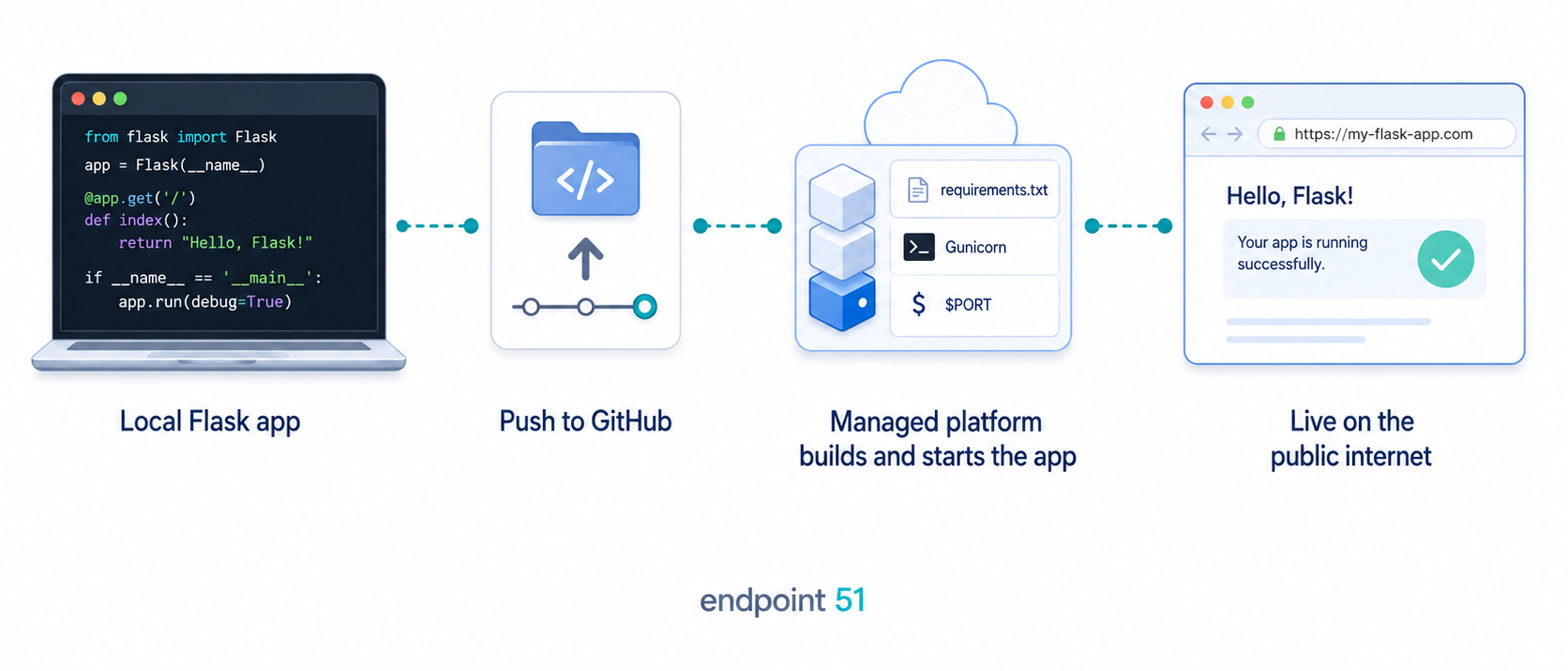
We will work through that flow in six steps:
- Prepare the app for production. Install Gunicorn instead of exposing Flask's development server.
- Declare the dependencies. Give the platform a reproducible
requirements.txt. - Define the start command. Tell the platform how to launch Gunicorn on its assigned port.
- Prepare configuration. Keep secrets out of Git and make sure debug mode is off.
- Push and deploy. Connect the GitHub repository so the platform can build and run it.
- Verify the result. Open the public URL and check the deployment logs if anything fails.
The app we are deploying
To keep every step concrete, we will deploy the smallest useful Flask app: one file, one route, returning a little JSON. If you already have an app, the same steps apply to it.
from flask import Flask, jsonify

app = Flask(__name__)


@app.route("/")
def home():
    return jsonify(message="Hello from my deployed Flask app")


if __name__ == "__main__":
    app.run(debug=True)
Run it locally and confirm it works before going any further. The if __name__ == "__main__" block starts Flask's built-in development server, which is perfect for building but, as the next step explains, is not what we want facing real traffic.
Use a production server
Flask ships with a development server, the one you get from app.run() or flask run. It is built for fast feedback while you code, not for serving the public. In production we put a proper WSGI server in front of the app instead, and the common choice for Flask is Gunicorn.
python -m pip install Flask==3.1.3 gunicorn==26.0.0Once it is installed, you can run the same app through Gunicorn locally to prove the setup works before any platform is involved.
gunicorn app:app
That app:app argument trips up a lot of people the first time. It is two halves separated by a colon. The part before the colon is the module, meaning the file app.py without its extension. The part after the colon is the Flask instance inside that file, the object we created with app = Flask(__name__). So app:app reads as "in the module app, find the WSGI application called app and serve it." If your file were named main.py and the instance were called application, the argument would be main:application.
Notice that Gunicorn never touches the if __name__ == "__main__" block. That block only runs when you execute the file directly with Python. Gunicorn imports the module and grabs the instance, so in production the development server is simply never started.
On Windows, test Gunicorn on Linux
Gunicorn is a Unix-style server, so it is meant for the Linux environment your deployment platform runs. If you are developing on Windows and the local gunicorn command fails, that does not mean your deployment is broken. Use WSL for the local Gunicorn test, or push the app and let the managed platform run Gunicorn on Linux.
Declare your dependencies
Your laptop has Flask and Gunicorn installed because you ran pip install at some point. The platform's machine is a clean slate. It needs a list of what to install, and for a pip-based project that list is a requirements.txt file in the root of your project.
Flask==3.1.3
gunicorn==26.0.0
Pinning exact versions means the platform installs the same releases you tested locally instead of silently picking up a newer release during a later deployment. You can write this file by hand for a small project, or let pip generate it from your current environment.
python -m pip freeze > requirements.txt
Only run that command from the virtual environment for this project. Running pip freeze from a global Python install can dump unrelated packages into requirements.txt, making builds slower and harder to understand. When the platform builds your app, it creates a fresh environment and installs exactly what this file lists, nothing more. If a package works on your machine but is missing from requirements.txt, the build will fail with an import error. The file is the contract between your code and the environment it will run in, so anything your app imports belongs in it.
Define the start command
The platform now knows what to install. It also needs to know what to run once everything is installed. That is the start command, and for our app it is the Gunicorn invocation from earlier, with one important addition.
Managed platforms decide for themselves which network port your app should listen on, and they hand that number to your process through an environment variable named PORT. Your start command has to read that variable and bind to it, rather than picking a fixed port of its own.
gunicorn --bind 0.0.0.0:$PORT app:app
The 0.0.0.0 means "listen on all network interfaces," which is what lets traffic from outside the container reach the app. The $PORT is the platform's injected port number. Some platforms ask you to type this command into a dashboard field. Others read it from a Procfile, a single-line file in your project root that names the process type and its command.
web: gunicorn --bind 0.0.0.0:$PORT app:appBind to $PORT, not a fixed port
If your start command binds to a hardcoded port, such as a bare gunicorn app:app (which defaults to 8000) or --bind 0.0.0.0:5000, the platform's health check looks for the app on the port it assigned and finds nothing. The signature is a build that succeeds and a process that starts in the logs, followed by a deploy that fails with "no open ports detected" or a health check that times out. The fix is always to bind to 0.0.0.0:$PORT so the app listens where the platform expects.
Prepare configuration for production
A real app needs configuration, such as API keys, a database URL, or a secret key for sessions. Those values must not be committed to Git. Keep local values in a .env file, add that file to .gitignore, and add the production values through your deployment platform's environment-variable settings when you create the service.
Your code reads configuration the same way locally and in production: use os.environ for required settings and os.getenv for optional settings with safe defaults. The application does not need to know whether a value came from a local .env file or a platform dashboard.
If you have not set up local environment variables yet, our guide to storing API keys with a .env file covers that pattern in full.
import os

from flask import Flask, jsonify

app = Flask(__name__)
app.config["SECRET_KEY"] = os.environ["SECRET_KEY"]


@app.route("/")
def home():
    return jsonify(message="Hello from my deployed Flask app")
Notice what is gone from this production version: the app.run(debug=True) block. Gunicorn imports the Flask object directly, so that block would not run during deployment anyway, but removing it from the production example makes the intended entry point explicit. Reading SECRET_KEY with os.environ["SECRET_KEY"] is also deliberate: a missing required secret should stop the app at startup instead of quietly running with broken session signing.
Never run with debug=True in production
Flask's debug mode enables an interactive in-browser debugger. On a public app, exposing that debugger can let a visitor execute Python on your server. Keep debug mode off in production and let Gunicorn run the application.
Push to GitHub
Most managed platforms deploy from a connected Git repository. They watch a branch, and every time you push, they rebuild and redeploy. So the next step is to get your project onto GitHub. Before you commit, add a .gitignore so you do not ship things that should stay local.
.venv/
__pycache__/
.env
The .venv/ and __pycache__/ entries keep your virtual environment and compiled bytecode out of the repository; the platform builds its own. The .env entry is the one that matters most. That file holds your secrets, and committing it pushes API keys and passwords into your Git history where they are very hard to fully remove. Our guide on storing API keys with a .env file covers that pattern in full.
git init
git add .
git commit -m "Initial Flask app ready to deploy"
git branch -M main
git remote add origin https://github.com/your-username/your-repo.git
git push -u origin main
After this push, your code, your requirements.txt, and your Procfile all live in a repository the platform can read. Your secrets do not, which is exactly what we want.
If .env was already committed before you added .gitignore, the ignore rule will not remove it from Git history. Remove it from the index with git rm --cached .env, commit that removal, and rotate any exposed secret. Once a secret has been committed, treat it as leaked.
Connect the platform and deploy
Now you connect the repository to a platform and let it do the work. The specifics of where you click vary between providers such as Render and Railway, so follow your chosen provider's current documentation. The sequence the platform runs through, however, is broadly the same.
- Connect the repository. You authorise the platform to read your GitHub repo and pick the branch to deploy.
- Add environment variables. Set required values such as
SECRET_KEYin the platform's configuration or secrets settings. - Install dependencies. The platform creates a fresh environment and installs everything in
requirements.txt. - Run the start command. It launches your app with
gunicorn --bind 0.0.0.0:$PORT app:app, either from the dashboard field or yourProcfile. - Hand you a public URL. Once the app is listening on the assigned port and the health check passes, the platform gives you a URL anyone can open.
When that URL loads your JSON message in a browser, the app is live. From here on, pushing to the connected branch triggers a fresh build and redeploy automatically. The exact dashboard layout, build settings, and any free-tier limits are things to read from the provider directly, since they change and differ between platforms.
Verify the deployment
Do not stop at a green "deployed" badge. Open the public URL in a browser or call it with curl, replacing the example hostname with the URL your provider assigned.
curl https://your-app.example.com/
The response should be the same JSON you saw locally: {"message":"Hello from my deployed Flask app"}. That proves more than the build completing: the public request reached the platform, Gunicorn was running, Flask loaded the application, and the route returned a response.
If the public URL does not respond
Open the platform's deployment logs and work from the first error rather than repeatedly redeploying. Check that every imported package appears in requirements.txt, the start command points to the correct module and Flask object, all required environment variables are set, and Gunicorn is listening on 0.0.0.0:$PORT. Those four checks account for most first-deployment failures.
What you just proved
Look back at what actually changed in your code between local and live. Almost nothing. You added a server you do not call directly, a file listing two dependencies, a one-line start command, and you moved your secrets out of the code and into the platform. The route, the logic, the Flask app itself, all the same.
Deployment is the environment, not the code
A first deployment teaches a quietly important lesson: your application barely changes when it goes public. What changes is everything around it. A public machine instead of your laptop, a production server instead of the development one, dependencies installed fresh from a declared list, a start command the platform runs, and configuration read from the environment instead of baked in. Deployment is that surrounding environment, and once you have built it once, every future app follows the same shape.
That is the whole arc of a first deployment. The app proved it could run on your machine; now it has proved it can start in a fresh environment, install its dependencies, bind to the port it is told to, read its configuration from the platform, and answer real requests from the public internet.
This managed-platform workflow is one route through a larger system. The guide to how software gets to production shows where this deployment sits alongside DNS, HTTPS, container registries, CI/CD, monitoring, and Kubernetes.
Frequently asked questions
Why can't I just run flask run in production?
Because flask run starts Flask's development server, which is built for local building and quick feedback, not for real traffic or stability under load. The Flask documentation explicitly warns against using it in production. Instead, use a production WSGI server such as Gunicorn, which is designed to run your app reliably and to handle real requests. You install it, declare it as a dependency, and point your start command at it.
What is the start command to deploy a Flask app?
The start command is gunicorn app:app, where the first app is the module (your app.py file) and the second is the Flask instance inside it. On a managed platform you also bind to the port the platform assigns through the PORT environment variable, so the full command becomes gunicorn --bind 0.0.0.0:$PORT app:app. Some platforms read this from a Procfile line such as web: gunicorn --bind 0.0.0.0:$PORT app:app.
How do I handle secrets and config in production?
Set them as environment variables in the platform's dashboard, and never commit them to your repository. Keep your .env file out of Git with a .gitignore entry. Read required values with os.environ["NAME"] so missing production config fails loudly, and use os.getenv("NAME", default) only for optional settings. And always turn debug mode off in production, because an exposed debugger lets visitors run code on your server.
Can I use Gunicorn on Windows?
Gunicorn is designed for Unix-like systems, which is what most managed Python platforms run in production. If you develop on Windows, use WSL to test Gunicorn locally, or let the platform run it after you push. The important part is that the deployed Linux environment can install Gunicorn from requirements.txt and run the start command.