Free Guide
Dockerizing a Python API: A Beginner-Friendly Dockerfile Walkthrough
It works on your machine and nowhere else. A Docker image is the standard answer to that problem. It packages your application together with the environment it needs so the thing that runs in production is the same thing you tested.
The good news is that you do not need to understand all of Docker to get value from it. You need one file, a couple of commands, and an understanding of the few decisions that matter. By the end of this guide you will have written a Dockerfile for a small Python API, built it into an image, and run that image as a container serving requests.
We will keep the example deliberately small so the Dockerfile has nothing to hide behind, then go through it line by line. Two things trip up almost every beginner, and we will spend real time on both: the order of instructions, which decides how fast your rebuilds are, and secrets, which must never be baked into an image. This guide assumes you have Docker installed and a basic Flask app in mind.
The app we are containerising
Before there can be a Dockerfile, there has to be something to run. The finished project will have this shape:
my-python-api/
├── app.py
├── requirements.txt
├── Dockerfile
└── .dockerignore
The app itself is about the smallest Flask API worth containerising. It answers one route with some JSON.
from flask import Flask

app = Flask(__name__)


@app.get("/")
def index():
    return {"status": "ok", "message": "Hello from a container"}
Alongside it sits a requirements.txt listing what the app needs to run. We include flask for the app itself and gunicorn, a better default for serving the app inside a container. The Flask development server is fine for local work, but gunicorn is the server we want the container to start.
Flask==3.1.3
gunicorn==26.0.0
The version numbers make the dependency install predictable. Without them, a build next month could silently install newer releases than the ones you tested today. When you deliberately upgrade a package, update its pin and test the image again.
Those two files, app.py and requirements.txt, are everything the image needs to install dependencies and start the server. With them in place, we can write the Dockerfile that turns them into a runnable image.
Writing the Dockerfile
A Dockerfile is a plain text file named Dockerfile, with no extension, sitting in the root of your project. It is a recipe: a list of instructions Docker follows from top to bottom to assemble your image. There are many valid Dockerfiles for a Python app, but this one is a good beginner-friendly baseline for the app above.
FROM python:3.12-slim

WORKDIR /app

COPY requirements.txt .
RUN python -m pip install --no-cache-dir -r requirements.txt

RUN useradd --create-home appuser

COPY . .

USER appuser

EXPOSE 8000

CMD ["gunicorn", "--bind", "0.0.0.0:8000", "--access-logfile", "-", "app:app"]
It is still compact, and every line earns its place. Taking them in order:
FROM python:3.12-slim chooses the base image, the foundation everything else is built on top of. This is a supported slim Python image: it already has Python installed on a trimmed-down Linux, so you are not starting from bare metal. The slim variant drops packages most apps never need, which keeps the final image smaller. You start from something that already runs Python rather than installing it yourself.
Tags can move; digests do not
Pinning the versions in requirements.txt makes the Python dependencies repeatable, but python:3.12-slim is still a mutable tag: its publisher can update the image behind that name with security fixes and operating-system packages. That is convenient for this beginner example. When a production build must use the exact same base every time, pin the image by digest, in the form FROM python:3.12-slim@sha256:..., and update that digest deliberately when you adopt a new base image.
WORKDIR /app sets the working directory inside the image. Every command after this runs from /app, and it is created for you if it does not exist. It is the equivalent of cd /app, and it keeps your app files in one predictable place rather than scattered at the filesystem root.
COPY requirements.txt . copies just the requirements file from your project into the image, into the working directory. Notice that we copy this one file on its own, before the rest of the code. That ordering is deliberate, and the next section explains exactly why it matters.
RUN python -m pip install --no-cache-dir -r requirements.txt installs the dependencies. RUN executes a command while the image is being built, so the installed packages become a baked-in part of the image rather than something downloaded at start-up. Calling pip through python -m pip makes sure the pip you run belongs to the Python interpreter in the image. The --no-cache-dir flag tells pip not to keep its download cache, which would otherwise sit unused inside the image and make it larger.
RUN useradd --create-home appuser creates a normal Linux user inside the image. Many beginner Dockerfiles skip this, because the container will work without it, but running the web process as root is a poor default.
COPY . . copies the rest of your project, including app.py, into the working directory. This comes after the install and user-creation steps on purpose, so your frequently changing source code does not invalidate the slower dependency layer above it.
USER appuser switches to the normal user before the app starts. Port 8000 is above the privileged port range, so a regular user can bind to it. For apps that need to write files inside the container, you would also make sure the target directory is owned by this user.
EXPOSE 8000 documents that the container listens on port 8000. This line is mostly informational: it records the port the app uses but does not actually publish it. The real port mapping happens when you run the container, which we get to later.
CMD ["gunicorn", "--bind", "0.0.0.0:8000", "--access-logfile", "-", "app:app"] is the command that runs when the container starts. It launches gunicorn, binds it to port 8000 on all interfaces so traffic from outside the container can reach it, writes request logs to standard output so docker logs can show them, and points it at app:app, which means the app object inside app.py. Binding to 0.0.0.0 rather than 127.0.0.1 matters here, because a server listening only on localhost inside a container is unreachable from the host.
Why copy requirements before the code
The single most common beginner mistake is to copy everything in one COPY . . and install afterwards. It works, but it throws away the thing that makes Docker rebuilds fast. To see why, you have to know how Docker actually builds an image.
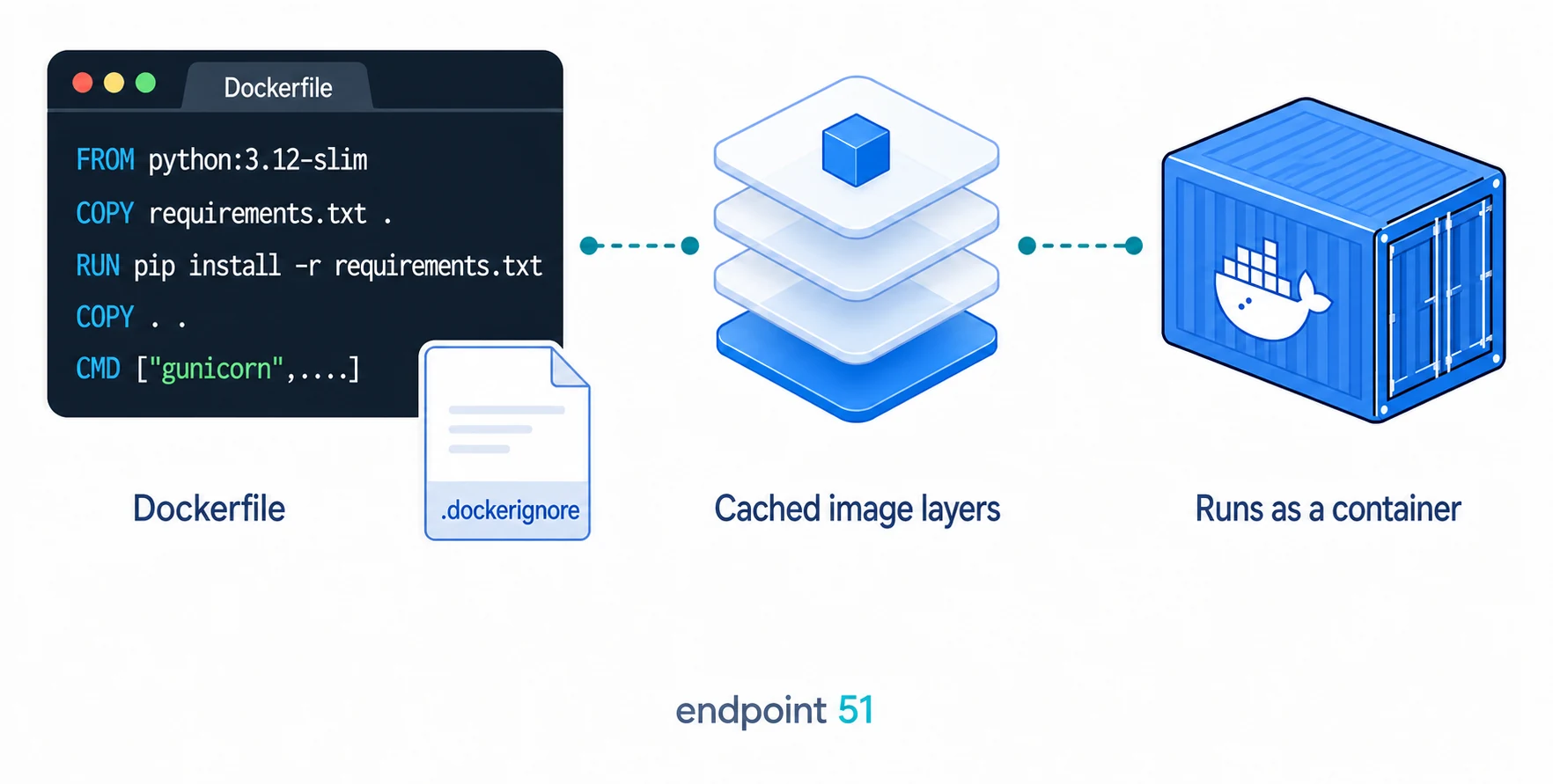
Each instruction in a Dockerfile produces a layer, and Docker caches those layers. When you rebuild, it walks down the file and reuses every cached layer until it hits an instruction whose inputs have changed. From that point on, every layer below is rebuilt from scratch. So the question is not whether layers are cached, but how often each one gets invalidated.
Your dependencies change rarely. Your source code changes constantly, every time you edit a line. If you copy the code before installing, then any code edit changes the COPY layer, which invalidates the install layer below it, and Docker reinstalls every dependency from scratch on a one-line change. By copying requirements.txt on its own first and installing it before COPY . ., the expensive install layer only rebuilds when the requirements file itself changes. Edit your app a hundred times and Docker reuses the cached dependencies every single time.
An image is built in layers
Each instruction in a Dockerfile is a cached layer, and a change to one layer invalidates every layer below it. The trick that makes rebuilds fast is ordering instructions from least frequently changed to most frequently changed. Dependencies near the top, your own source code near the bottom. Get that order right and most rebuilds reuse the slow steps instead of repeating them.
Add a .dockerignore
When Docker runs COPY . ., it copies everything in your project directory by default, and that is rarely what you want. A .dockerignore file, which works just like a .gitignore, tells Docker which files and folders to leave out. Create it in the project root.
.venv/
__pycache__/
.pytest_cache/
.git/
.env
.env.*
!.env.example
*.pyc
*.pyo
*.pyd
Each line keeps something out of the image for a reason. .venv/ is your local virtual environment, which is specific to your machine and useless inside a Linux container that installs its own dependencies. __pycache__/, .pytest_cache/, and compiled Python files are development leftovers that Docker does not need. .git/ is your entire version history, often large and never needed at run time. Leaving these out keeps the image small and the build fast.
The .env and .env.* lines are in a different category. They are there for safety, not size, and they point at the one mistake that can genuinely hurt you. The !.env.example exception lets you keep a harmless template file in the image or repository if you use one, while still excluding real local secret files.
Baked-in secrets are leaked secrets
Never COPY a .env file or hardcode an API key into a Dockerfile. Image layers are readable, and anyone who can pull your image can inspect them. The signature of this mistake is subtle: a secret added in one layer and deleted in a later one is still recoverable from the earlier layer, so "I removed it afterwards" does not save you. The exposed secret lives in the image history forever. Pass secrets in as environment variables at run time instead, and keep .env out of the build with .dockerignore.
This is the same discipline you would apply outside Docker: secrets belong in the environment, not in the code or the artifact. If you have not set that up yet, our guide on storing API keys with a .env file covers the pattern that .dockerignore is protecting here.
Building the image
With the Dockerfile and .dockerignore in place, we can turn the recipe into an actual image. From the project root, run the build command.
docker build -t my-python-api .
Two parts of that command are worth understanding. The -t my-python-api flag tags the image with a name, so you can refer to it later as my-python-api instead of a long generated ID. The trailing . is the build context: it tells Docker which directory to send to the builder and treat as the root for COPY instructions. The dot means "this directory," which is why you run the command from your project root, where the Dockerfile lives. Docker reads the Dockerfile, runs each instruction, and leaves you with a finished image ready to run.
If you want a completely fresh rebuild, use docker build --no-cache -t my-python-api .. You do not need that for normal edits, and it will be slower, but it is useful when you want to prove the Dockerfile still works without relying on cached layers.
Running the container
An image is a static template. A container is that template brought to life and running. To start one from the image we just built:
docker run --rm -p 127.0.0.1:8000:8000 my-python-api
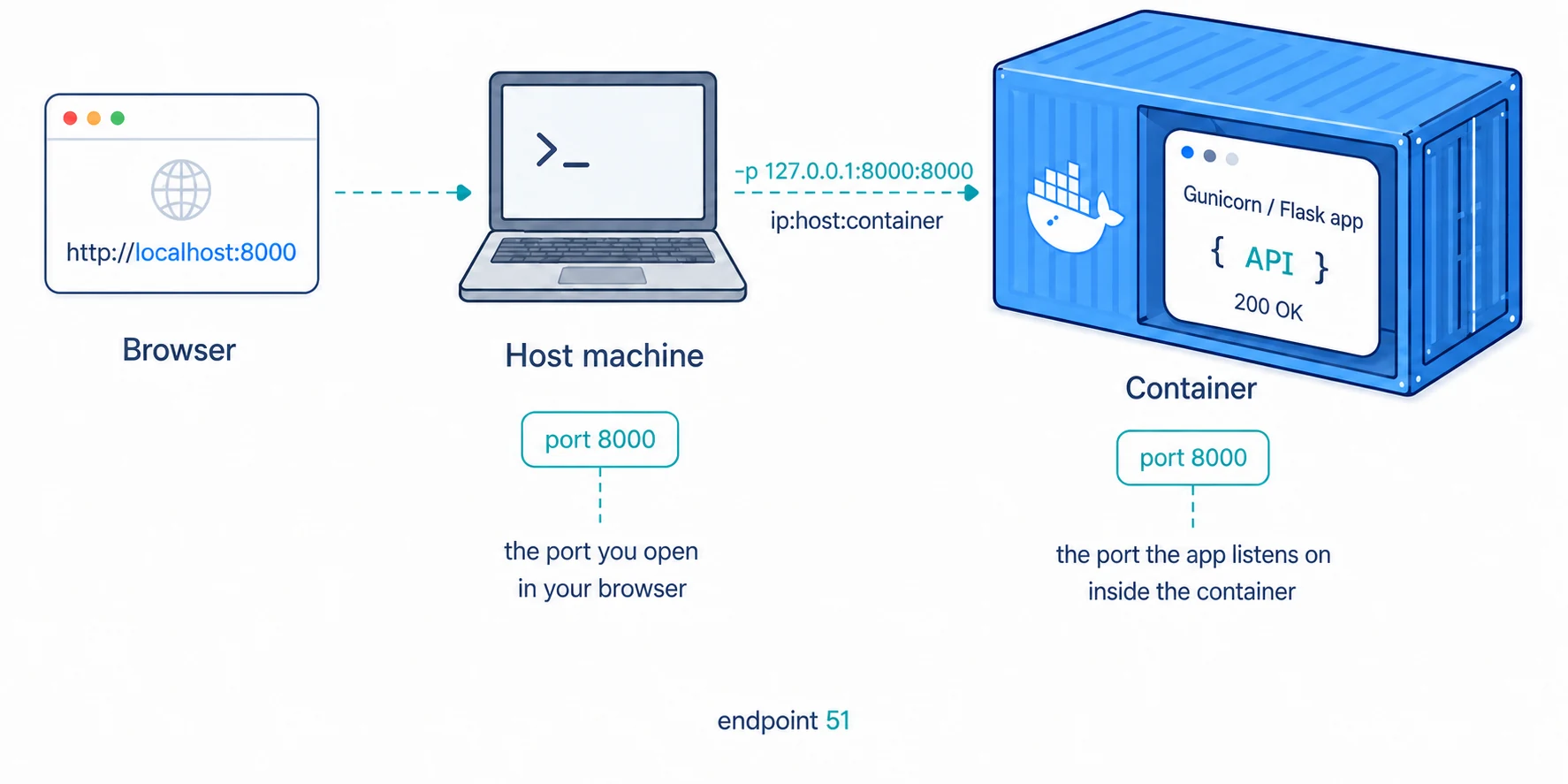
The piece that connects your machine to the container is -p 127.0.0.1:8000:8000. This mapping has three parts, in the form ip:host:container. 127.0.0.1 means only your own machine can connect. The first 8000 is the host port you open in your browser, and the second is the port gunicorn listens on inside the container. Without a published port, the container would serve requests internally but remain unreachable from your browser. With this mapping in place, visiting http://localhost:8000 reaches your API.
The --rm flag handles cleanup rather than networking. It tells Docker to remove the stopped container when you exit with Ctrl + C, which keeps your machine from filling up with old stopped containers.
Why include 127.0.0.1?
If you shorten the mapping to -p 8000:8000, Docker publishes the port on every network interface by default, not only on your own machine. The app still answers at http://localhost:8000, but another device on the same Wi-Fi or office network may also be able to reach it through your machine's network address. Keeping 127.0.0.1 at the front is the safer default for local development.
Test the API
curl http://localhost:8000
You should see the JSON response from app.py. If the build succeeded but this request fails, check three things first: the container is still running, the host port on the left side of -p matches the URL you opened, and gunicorn is bound to 0.0.0.0 rather than 127.0.0.1.
Pass configuration at run time
This is also where secrets come in, the run-time way rather than the baked-in way. To pass configuration into the container, set environment variables when you run it. A single value uses -e, and a whole file of them uses --env-file. The commands below are local demonstrations and use a placeholder value; do not paste a real secret directly into a shared terminal command.
docker run --rm -p 127.0.0.1:8000:8000 -e API_KEY=your-key-here my-python-api

docker run --rm -p 127.0.0.1:8000:8000 --env-file .env my-python-api
Both inject the values into the running container's environment, where your code reads them exactly as it would locally, without those values becoming part of the image. That solves the baked-in-secret problem, but it does not make the values invisible: a value written after -e can remain in your shell history, and users with sufficient access to Docker can inspect a container's environment. For a real deployment, store secrets in the deployment platform's secret manager and grant access only to the service that needs them.
Where containers go from here
The payoff of all this is portability. The same image you built and ran locally is the same artifact you can run on any machine with Docker, push to a registry so others can pull it, or hand to a platform that runs containers for you. That is the whole point of packaging the environment alongside the code.
Once the app runs as a container, deployment becomes a much smaller leap: the next platform does not need to recreate your laptop; it only needs to run the image you already built. For the next step of getting a Flask app onto the public internet, see our walkthrough on deploying a Flask app.
If the surrounding layers still feel blurred together, local hosting versus deployment separates their responsibilities. The complete map of how software gets to production then places the container inside the journey through registries, deployment platforms, CI/CD, and monitoring.
Frequently asked questions
What is the difference between a Docker image and a container?
An image is the packaged, immutable template: your application code, its dependencies, and the environment it runs in, built once and unchanging. A container is a running instance of that image. You build one image and can start many containers from it, the same way a class defines a blueprint and each object is a live instance of it. The image sits on disk doing nothing; the container is the process actually serving requests.
Why copy requirements.txt before the rest of the code in a Dockerfile?
It is about layer caching. Docker caches each instruction as a layer and reuses cached layers on rebuilds until something changes. Dependencies change rarely while source code changes constantly, so copying requirements.txt and installing it before copying the app means the slow install step is reused whenever only your code changed. Reinstalling dependencies happens only when the requirements file itself changes, which makes rebuilds dramatically faster.
How do I handle secrets in a Docker image?
Never bake them in. Image layers are readable, so an API key copied into an image is recoverable by anyone who pulls it, even if a later layer deletes the file. Keep .env in .dockerignore and supply configuration at run time. Treat -e KEY=value as a local demonstration because the value may remain in shell history, and remember that privileged Docker users can inspect a container's environment. For deployments, use the platform's secret manager.
Do I need Docker Compose for this?
Not for this guide. Docker Compose is useful when your app depends on other services, such as PostgreSQL, Redis, or a worker process. Here we are running one small API in one container, so a Dockerfile plus docker build and docker run is enough.
Should a Docker container run as root?
Avoid it when you can. Many simple examples run as root because it is shorter, but a web process usually does not need root privileges. Create a normal user in the image and switch to it with USER before CMD. For this guide, port 8000 is high enough that the non-root user can still run gunicorn without special permission.