5. Orchestrating with Docker Compose
Real applications have multiple services. Docker Compose lets you define them in one YAML file and start the whole stack with a single command.
What Docker Compose is
Compose is a YAML-driven wrapper around docker run that describes a stack of services in one file. For the news aggregator, that stack is three containers: the FastAPI app, Postgres, and Redis. The previous page got the API into one image; this page gets the rest of the dependencies orchestrated alongside it, including the network they share and the secrets they read from .env.
The pain Compose removes
Imagine starting your News API stack manually without Docker Compose. You'd run these commands in separate terminal windows:
docker run --name postgres-db \
  -e POSTGRES_USER=newsapi \
  -e POSTGRES_PASSWORD=$POSTGRES_PASSWORD \
  -e POSTGRES_DB=news_aggregator \
  -p 5432:5432 \
  -v postgres_data:/var/lib/postgresql/data \
postgres:15docker run --name redis-cache \
-p 6379:6379 \
redis:7-alpinedocker run --name news-api \
--link postgres-db:postgres \
--link redis-cache:redis \
-e DATABASE_URL=postgresql://newsapi:$POSTGRES_PASSWORD@postgres:5432/news_aggregator \
-e REDIS_URL=redis://redis:6379 \
-e NEWSAPI_KEY=your_key_here \
-e GUARDIAN_KEY=your_key_here \
-p 8000:8000 \
news-api:optimizedThis workflow is tedious and error-prone. You must remember the exact commands, type them correctly, manage three terminal windows, and stop services individually when done. If you restart your computer, you repeat everything. Teammates need documentation explaining every flag and environment variable. This doesn't scale.
Docker Compose replaces these three commands with one: docker compose up. All configuration lives in docker-compose.yml, a version-controlled file that documents your entire stack. Teammates clone your repository and run one command. Everything works.
Your first docker-compose.yml
Make: Create a docker-compose.yml file in your project root. This file defines all three services (API, PostgreSQL, Redis) and their configuration:
version: '3.8'

services:
  # PostgreSQL Database
  postgres:
    image: postgres:15-alpine
    container_name: news-postgres
    environment:
      POSTGRES_USER: newsapi
      POSTGRES_PASSWORD: ${POSTGRES_PASSWORD}
      POSTGRES_DB: news_aggregator
    volumes:
      - postgres_data:/var/lib/postgresql/data
    ports:
      - "5432:5432"
    healthcheck:
      test: ["CMD-SHELL", "pg_isready -U newsapi"]
      interval: 10s
      timeout: 5s
      retries: 5
    networks:
      - news-network

  # Redis Cache
  redis:
    image: redis:7-alpine
    container_name: news-redis
    command: redis-server --appendonly yes
    volumes:
      - redis_data:/data
    ports:
      - "6379:6379"
    healthcheck:
      test: ["CMD", "redis-cli", "ping"]
      interval: 10s
      timeout: 3s
      retries: 5
    networks:
      - news-network

  # News API Application
  api:
    build:
      context: .
      dockerfile: Dockerfile
    container_name: news-api
    environment:
      DATABASE_URL: postgresql://newsapi:${POSTGRES_PASSWORD}@postgres:5432/news_aggregator
      REDIS_URL: redis://redis:6379
      NEWSAPI_KEY: ${NEWSAPI_KEY}
      GUARDIAN_KEY: ${GUARDIAN_KEY}
    ports:
      - "8000:8000"
    depends_on:
      postgres:
        condition: service_healthy
      redis:
        condition: service_healthy
    networks:
      - news-network
    restart: unless-stopped

# Named volumes for persistent data
volumes:
  postgres_data:
  redis_data:

# Custom network for service communication
networks:
  news-network:
    driver: bridge
Check: Before starting the stack, create a .env file for sensitive credentials. Docker Compose loads these automatically:
POSTGRES_PASSWORD=your_secure_password_here
NEWSAPI_KEY=your_newsapi_key_here
GUARDIAN_KEY=your_guardian_api_key_here
Now start your entire stack with one command:
docker compose upDocker Compose builds your API image (if not already built), pulls PostgreSQL and Redis images, creates containers, and starts all three services. You'll see logs from all services in one terminal:
[+] Running 4/4
 ✔ Network news-network      Created
 ✔ Container news-postgres   Started
 ✔ Container news-redis      Started
 ✔ Container news-api        Started

news-postgres  | PostgreSQL init process complete; ready for start up.
news-redis     | Ready to accept connections
news-api       | INFO:     Started server process
news-api       | INFO:     Waiting for application startup.
news-api       | INFO:     Application startup complete.
news-api       | INFO:     Uvicorn running on http://0.0.0.0:8000
Extract: Your entire stack is running. Open http://localhost:8000/docs in your browser to verify the API works. PostgreSQL stores articles. Redis will cache them (after you implement caching in Section 6). Everything runs in isolated containers but communicates through the news-network bridge network.
version: '3.8': Specifies Docker Compose file format version. Version 3.8 supports all features we need (health checks, depends_on conditions).
services: Each service is a container. postgres, redis, and api are service names used for internal networking. Your API connects to postgres:5432 and redis:6379 using these service names as hostnames.
environment: Environment variables passed to containers. ${POSTGRES_PASSWORD} references the value from your .env file, preventing hardcoded secrets in version control.
volumes: Named volumes provide persistent storage. postgres_data:/var/lib/postgresql/data stores database files outside the container. When you stop containers, data persists. When you restart, data is intact.
healthcheck: Docker monitors service health. pg_isready checks if PostgreSQL accepts connections. The API waits until PostgreSQL is healthy before starting, preventing connection errors.
depends_on with condition: The api service depends on postgres and redis being healthy. Docker starts services in order and waits for health checks to pass. This prevents the API from trying to connect to databases that aren't ready yet.
networks: All services join news-network. This provides DNS resolution (services reach each other by name) and network isolation (other containers can't access your services unless explicitly connected to this network).
Redis persistence: The --appendonly yes flag enables AOF (Append Only File) persistence, writing every cache operation to disk. For pure caching scenarios, this durability is optional since an empty cache after restart just means "Cache Miss" and fresh data gets fetched. You can disable it (command: redis-server) for higher write performance if you're comfortable with an empty cache after restarts. For production, AOF provides safety at the cost of I/O overhead.
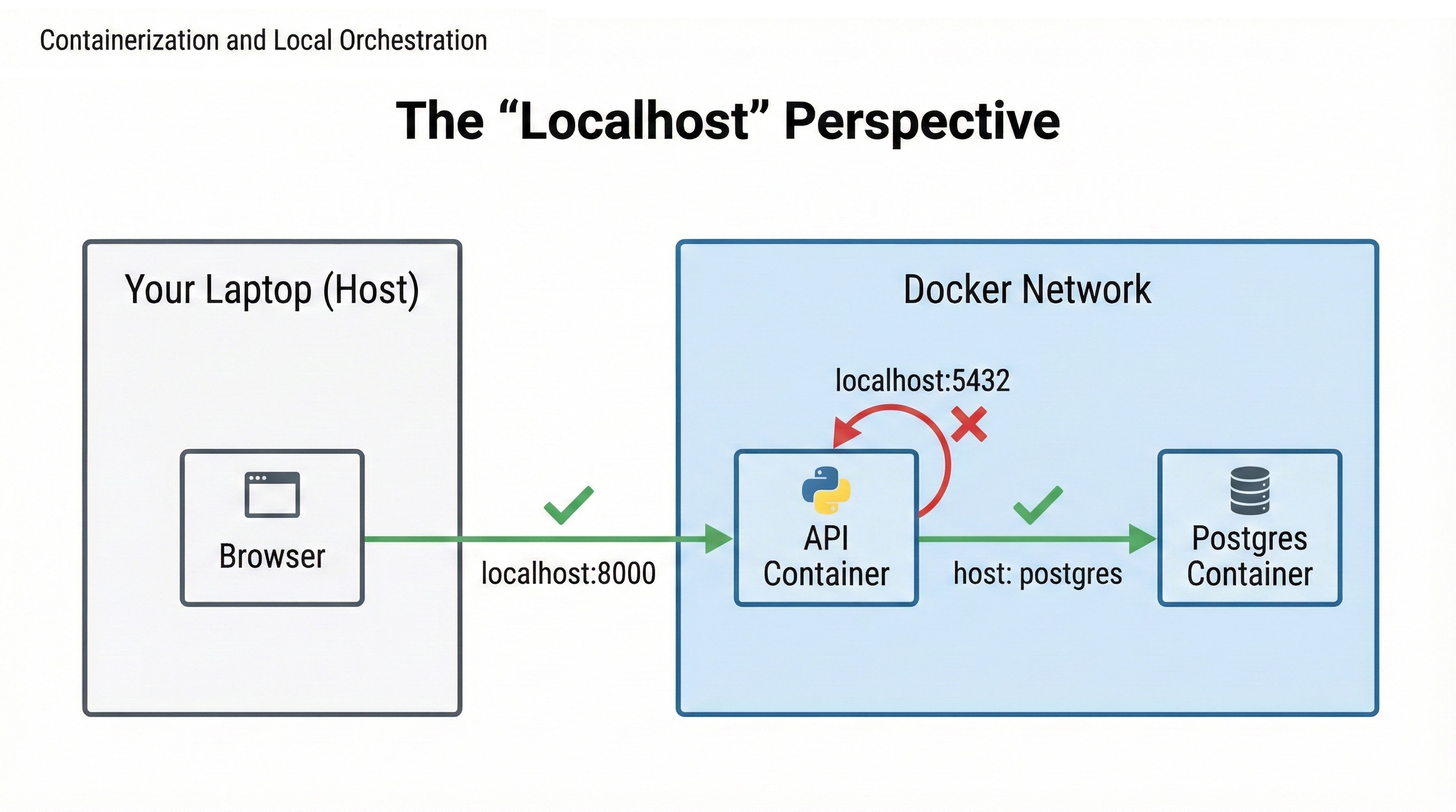
Inside a container, localhost refers to that container itself, not your host machine. If your API tries to connect to localhost:5432, it's looking for PostgreSQL inside the API container. It won't find it.
This is the #1 confusion point when moving to Docker. You must use service names (postgres, redis) as hostnames. Docker's internal DNS automatically resolves these names to the correct container IP addresses on the news-network.
Wrong: DATABASE_URL=postgresql://user:pass@localhost:5432/db
Right: DATABASE_URL=postgresql://user:pass@postgres:5432/db
When accessing from your host machine (browser, curl), you still use localhost:8000 because port mapping exposes container ports to your host. But container-to-container communication uses service names, never localhost.
Environment variables and secrets
Your docker-compose.yml references environment variables using ${VARIABLE_NAME} syntax. This pattern separates configuration from code, preventing secrets from appearing in version control. The next two snippets show the mistake first, then the safer shape.
Bad practice: Hardcoding secrets in docker-compose.yml:
environment:
  POSTGRES_PASSWORD: MySecretPassword123
  NEWSAPI_KEY: abc123def456ghi789
You commit this file to git. Everyone who clones your repository sees your passwords and API keys. If your repository is public, anyone on the internet sees them. Attackers scan GitHub for exposed credentials and exploit them within hours.
Good practice: Reference environment variables from .env file:
environment:
  POSTGRES_PASSWORD: ${POSTGRES_PASSWORD}
  NEWSAPI_KEY: ${NEWSAPI_KEY}
Your .gitignore includes .env, so secrets never reach git. Instead, provide a template file:
# Copy this file to .env and fill in your actual values
POSTGRES_PASSWORD=changeme
NEWSAPI_KEY=get_from_newsapi.org
GUARDIAN_KEY=get_from_theguardian.com
Teammates copy .env.example to .env and add their credentials. Each developer has their own .env file that never gets committed. Production environments use different credentials stored in secure secret management systems (AWS Secrets Manager, environment variables in deployment platforms).
Why this matters beyond security: Different environments need different values. Development uses localhost databases. Production uses AWS RDS. Your NewsAPI key has different rate limits than your teammate's key. Environment variables let the same docker-compose.yml work everywhere by changing only the .env file.
The principle: Configuration that changes between environments (URLs, credentials, feature flags) lives in environment variables. Configuration that's the same everywhere (service names, ports inside containers) lives in docker-compose.yml.
In production: You won't use .env files. Cloud platforms provide secure secret storage (AWS Secrets Manager, Kubernetes Secrets). But the pattern remains: secrets come from the environment, never hardcoded in configuration files.
Managing the stack
Docker Compose provides commands for managing your multi-container application throughout development. These commands control the entire stack together rather than managing containers individually.
Start the stack:
docker compose up
This builds images if needed, creates containers, and starts all services. Logs from all containers appear in your terminal. Use -d flag for detached mode (runs in background):
docker compose up -dStop the stack:
docker compose downThis stops all containers and removes them. Named volumes (database data) persist. If you want to delete volumes too (starting fresh):
docker compose down -vView logs:
docker compose logs
For live logs (follows new output): docker compose logs -f. For logs from specific service: docker compose logs api.
Rebuild after code changes:
docker compose up --build
The --build flag forces rebuilding images even if they already exist. Use this after changing application code or dependencies.
Execute commands inside containers:
docker compose exec api python -c "import os; print(os.getenv('DATABASE_URL'))"
docker compose exec postgres psql -U newsapi -d news_aggregator
This runs commands inside running containers. The first command checks what database URL the API container sees; the second opens a PostgreSQL shell inside the database container so you can inspect data directly.
The stack now has Postgres for durable article storage and Redis sitting empty alongside it. Next, in section 6, we wire Redis in front of the endpoints that profiling identified as slow and re-measure against the baseline.
Checkpoint: Docker Compose
Use this quiz to check your understanding. Try to answer each question out loud or in a notebook before expanding the explanation. If you get stuck, that's a signal to revisit the relevant section.
What problem does Docker Compose solve that manual docker run commands don't?
Answer: Docker Compose orchestrates multi-container applications, eliminating the need to manually manage multiple containers with complex commands. Without Compose, you'd need three terminal windows, three long commands with networking flags, and manual coordination of startup order.
Docker Compose defines your entire stack in one YAML file, starts everything with docker compose up, manages networking automatically, and ensures services start in the correct order using health checks. Configuration is version-controlled and documented, so teammates run one command to start the full stack.
Why store secrets in .env files instead of hardcoding them in docker-compose.yml?
Answer: Security and flexibility. docker-compose.yml is committed to version control. If you hardcode secrets, they're visible to everyone who clones your repository. If your repository is public, attackers find and exploit credentials within hours.
.env files stay local (excluded by .gitignore), so secrets never reach git. Different environments use different credentials: development uses local databases, production uses AWS RDS. The same docker-compose.yml works everywhere by changing only the .env file.
Provide .env.example as a template showing required variables without exposing real values.