2. Quick start: your first playlist in 15 minutes
What you'll establish in the next 15 minutes: OAuth works against a real provider; the Spotify API returns real personalised data; and playlist creation works from Python. Every feature later in the chapter builds on this same authenticated client; getting this right once means everything that follows is just SQL and Python.
Don't try to understand every line of the script on the first read. The goal is to see it work, feel the satisfaction of a generated playlist appearing in your Spotify app, and only then dive into what each piece does.
Spotify platform status (early 2026). Spotify has tightened Developer Mode in ways that affect personal projects. Creating a development-mode app now requires the owner to hold an active Spotify Premium subscription, caps test users at five per app, and allows one development-mode client ID per developer. That is still enough for this localhost project: OAuth, top-track snapshots, Forgotten Gems, and analytics all use the standard endpoints covered here.
Step 1: get Spotify developer credentials
Every application that uses Spotify's API needs credentials: a Client ID and Client Secret. These identify your application to Spotify and enable OAuth authentication.
Here's how to get them:
- Go to the Spotify Developer Dashboard. Visit
https://developer.spotify.com/dashboardand log in with the Spotify account that will own the app. As of early 2026, development-mode apps require the app owner to have an active Spotify Premium subscription, and a development-mode app can grant access to at most five test users (the Spotify accounts you explicitly add). That's plenty for a personal project; reaching a wider audience means applying for extended quota, which Spotify now reserves for organisations that meet its partner criteria. These rules tightened over 2024-2026, so check the dashboard for the current terms.
Create an app
Click "Create app" and fill in the form:
- App name: "Music Time Machine" (or whatever you prefer)
- App description: "Personal music analytics and playlist generator"
- Redirect URI:
http://127.0.0.1:8888/callback(exactly this; this loopback IP address is where OAuth redirects after authorisation) - APIs used: Check "Web API"
- Get your credentials. After creating the app, click "Settings." You'll see your Client ID displayed. Click "View client secret" to reveal your Client Secret. Copy both. You'll need them in a moment.
Why 127.0.0.1:8888/callback?
In Chapter 14, you used a redirect URI as the place where the OAuth provider sends the browser after the user approves access. Spotify uses the same idea. Once you sign in and authorise the app, Spotify redirects your browser back to the redirect URI with a temporary authorisation code in the URL.
During local development, that redirect URI can point back to your own
computer. The address 127.0.0.1 means "this machine", so
http://127.0.0.1:8888/callback tells Spotify to send the browser
back to a small local server running on your computer.
The :8888 part is the port Spotipy listens on while the login
flow is running. The /callback path is the route that receives
the authorisation code when Spotify sends the browser back.
Spotify requires local redirect URIs to use an explicit loopback IP address
such as 127.0.0.1, rather than the alias localhost.
The full URI must also match the redirect URI you configured in your Spotify
developer app.
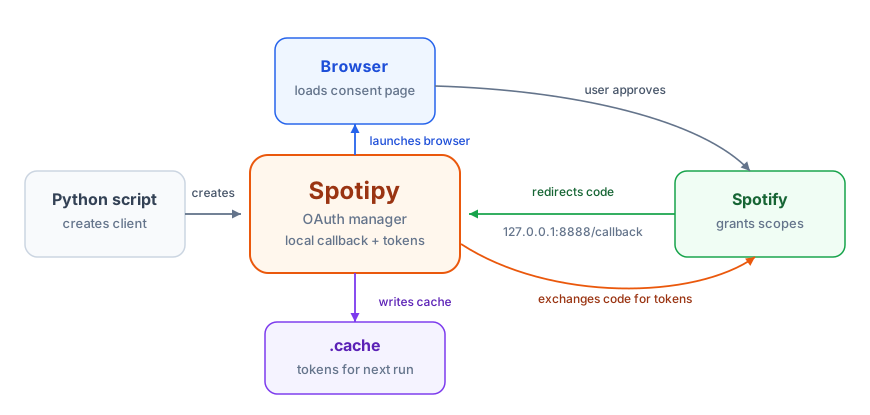
When the browser returns to the callback URL, Spotipy catches the code, exchanges it for access tokens, and saves the token cache. That cache lets future scripts reuse the login instead of asking you to authorise the app every time.
Keep your client secret secret
Your Client Secret is a password. Don't commit it to GitHub, don't share it in screenshots, and don't paste it into a chat tool. We'll use environment variables to keep it out of source control, the same pattern you learned in Chapter 7 for API keys.
Step 2: install dependencies
You need two Python packages: spotipy (Spotify API wrapper) and python-dotenv (environment variable management).
python -m venv .venv
# Windows PowerShell:
.venv\Scripts\activate
# macOS/Linux:
source .venv/bin/activate
pip install "spotipy>=2.26.0" python-dotenv
Pin spotipy>=2.26.0. This project calls current_user_playlist_create(), which only exists from 2.26.0 onward; on an older install it fails with AttributeError. If you have Spotipy from a previous project, upgrade it: pip install --upgrade spotipy.
How Spotipy appears in your code
You met Spotipy in the overview. In this quick start, it appears as a client object named sp. That object gives you Python methods for the Spotify actions this script needs: sp.current_user_top_tracks() fetches listening data, and sp.current_user_playlist_create() creates a real playlist.
Spotipy does not replace Spotify. Your app is still authenticating with Spotify, still receiving Spotify data, and still creating real Spotify playlists. Spotipy keeps this quick start focused on the playlist logic instead of the lower-level API plumbing.
Step 3: store credentials securely
Create a file called .env in your project directory. This file stores secrets and never gets committed to version control.
SPOTIPY_CLIENT_ID=your_client_id_here
SPOTIPY_CLIENT_SECRET=your_client_secret_here
SPOTIPY_REDIRECT_URI=http://127.0.0.1:8888/callback
Replace your_client_id_here and your_client_secret_here with the actual values from the Spotify Developer Dashboard. The redirect URI should match exactly what you configured in Step 1.
Now add .env to your .gitignore file so Git never tracks it:
.env
__pycache__/
*.pyc
.cache
*.db
The .cache file will appear when you run the OAuth flow. It stores your access token locally. You don't want that in version control either.
Step 4: create your first playlist
Now for the moment of truth. This script authenticates with Spotify, fetches your top tracks, and creates a playlist. It's about 30 lines of code that demonstrate the entire flow.
"""
Quick Start: Create your first Spotify playlist
This script demonstrates OAuth authentication and basic API usage
"""
import os
from dotenv import load_dotenv
import spotipy
from spotipy.oauth2 import SpotifyOAuth

# Load credentials from .env file
load_dotenv()

# Define the permissions we need
scope = "user-top-read playlist-modify-public playlist-modify-private"

# Create Spotify client with OAuth
sp = spotipy.Spotify(auth_manager=SpotifyOAuth(scope=scope))

# Get current user info
user = sp.current_user()
print(f"Authenticated as: {user['display_name']}")

# Fetch top tracks from last 4 weeks
print("\nFetching your top tracks...")
top_tracks = sp.current_user_top_tracks(limit=20, time_range='short_term')

# Extract track URIs (Spotify's unique identifiers)
track_uris = [track['uri'] for track in top_tracks['items']]
track_names = [track['name'] for track in top_tracks['items']]

# Create a new playlist
print("\nCreating playlist...")
playlist = sp.current_user_playlist_create(
    name="My Top Tracks - Quick Start",
    public=False,
    description="Created by Music Time Machine - My current favourites"
)

# Add tracks to the playlist
sp.playlist_add_items(playlist['id'], track_uris)

print(f"\n[OK] Success! Created playlist with {len(track_uris)} tracks")
print(f"[OK] Playlist URL: {playlist['external_urls']['spotify']}")
print("\nYour top tracks right now:")
for i, name in enumerate(track_names, 1):
    print(f"  {i}. {name}")
Save this as quick_start.py and run it:
python quick_start.pyThe OAuth flow: what just happened
That 30-line script is the entire authorisation code flow you learned in Chapter 14, executed against a real provider. Here's the sequence Spotipy ran on your behalf when you called sp.current_user() for the first time:
- Browser opens automatically. Spotipy detected no cached token and opened your browser to Spotify's authorisation page. You saw "Music Time Machine wants to access your Spotify account" with the permission list (top tracks, modify playlists).
- You granted permission. The "Agree" click is you (the resource owner) authorising the application to act on your behalf, the OAuth authorisation step from Chapter 14.
- Spotify redirected to your loopback address. The redirect URL
http://127.0.0.1:8888/callback?code=...carried an authorisation code. Spotipy ran a tiny web server on port 8888 to catch the redirect and extract the code. - Token exchange ran behind the scenes. Spotipy
POSTed the authorisation code plus client credentials to Spotify's token endpoint, exactly the confidential-client exchange you implemented manually in Chapter 14. - Token saved locally. The access token landed in a
.cachefile beside the script, valid for one hour. On the next run Spotipy reads the cache instead of restarting the flow; when the token expires it uses the refresh token to mint a new one automatically. - API calls succeeded. Every subsequent request, top tracks, playlist creation, item add, attached the access token in the
Authorizationheader.
Two pieces of Chapter 14 are doing real work under that abstraction, but not in the same way. This script uses Spotipy's confidential-client SpotifyOAuth flow, so the client secret is what binds the token exchange to your registered app; it is not a PKCE example. Spotipy also accepts a state parameter, but its documentation says it does not verify that value for this auth manager. For a local learning script, that tradeoff keeps the example short. For a web app with real users, keep Chapter 14's rule: generate state, store it server-side, verify it on callback, and abort before token exchange if it does not match.
That's the bargain libraries make: they hide much of the OAuth plumbing so you can focus on what's specific to your application, but they do not remove your responsibility to check the security contract. You can debug Spotipy when something breaks because you know what should be happening at each step.
Authenticated as: John Smith

Fetching your top tracks...

Creating playlist...

[OK] Success! Created playlist with 20 tracks
[OK] Playlist URL: https://open.spotify.com/playlist/5a8d2f3...

Your top tracks right now:
  1. Karma Police
  2. Everlong
  3. Mr. Brightside
  4. Dreams
  5. Wonderwall
  6. Smells Like Teen Spirit
  7. Don't Look Back In Anger
  8. Champagne Supernova
  9. Under the Bridge
  10. Black Hole Sun
  11. Jeremy
  12. Interstate Love Song
  13. Glycerine
  14. No Rain
  15. Today
  16. Lightning Crashes
  17. What I Got
  18. Semi-Charmed Life
  19. Closing Time
  20. The Impression That I Get
Check your Spotify app: the playlist is there. In about 30 lines of Python you authorised against a real-world OAuth API, fetched personalised data, and created content in your account.
Understanding scopes: what permissions mean
Look at the scope variable in the quick start script:
scope = "user-top-read playlist-modify-public playlist-modify-private"Scopes define what your application can do. Each scope grants permission for specific operations:
- user-top-read. Allows reading your top tracks and artists. Required for the Forgotten Gems and Currently Obsessed features. Without this scope,
sp.current_user_top_tracks()returns a 403 Forbidden error. - playlist-modify-public. Allows creating and modifying public playlists. Required for creating playlists that appear in your profile. Without this,
sp.current_user_playlist_create()fails if you try to make a public playlist. - playlist-modify-private. Allows creating and modifying private playlists. Most users prefer private playlists for generated content, so we request this scope too. The quick start script creates private playlists (
public=False).
The complete Music Time Machine uses the same three scopes:
scope = (
    "user-top-read "                   # Read top tracks and artists
    "playlist-modify-public "          # Create/modify public playlists
    "playlist-modify-private"          # Create/modify private playlists
)
Principle of least privilege
Only request the scopes you actually need. Users see the permission list during OAuth authorisation, and excessive permissions make them nervous. If you only read data, don't request write permissions. If you only work with playlists, don't request access to saved albums.
The Music Time Machine legitimately needs all three scopes listed above. Each one enables a specific feature. If you later add a feature that reads saved tracks or recently played items, add that scope at the moment you introduce the feature so users are not asked for permissions the app does not use.
Troubleshooting: common first-run issues
If something goes wrong, here are the most common problems and their solutions:
Error: "Invalid redirect URI" during authorisation
The redirect URI in your .env file doesn't match what you configured in the Spotify Developer Dashboard.
Fix: Go to your app settings in the dashboard and verify the redirect URI is exactly http://127.0.0.1:8888/callback. No trailing slash, no https, port 8888 specifically. Then make sure your .env file has: SPOTIPY_REDIRECT_URI=http://127.0.0.1:8888/callback
The redirect URI must match character-for-character. Spotify no longer allows localhost aliases for redirect URIs; use the explicit loopback IP address 127.0.0.1 in both places.
Error: "Can't connect to 127.0.0.1:8888" or browser shows "Unable to connect"
After you authorise in the browser, Spotify tries to redirect to 127.0.0.1:8888 but can't connect. This usually means Spotipy's temporary web server didn't start properly.
Fix: Check if another application is using port 8888. Try closing other programs and running the script again. If the problem persists, change the port in both the .env file and the Spotify Developer Dashboard (try 8080 or 9000).
Alternatively, the browser might show the "Unable to connect" page but the script works anyway. Check your terminal. If it says "Authenticated as: [your name]", the OAuth flow succeeded even though the browser couldn't load the callback page.
Error: "Invalid client" or "Client secret invalid"
Your Client ID or Client Secret is wrong. Double-check that you copied them correctly from the Spotify Developer Dashboard.
Fix: Go to your app in the dashboard, click "Settings," and copy the Client ID and Client Secret again. Make sure there are no extra spaces, no quotes, and no newlines in your .env file. The format should be:
SPOTIPY_CLIENT_ID=abc123...
SPOTIPY_CLIENT_SECRET=xyz789...
If you accidentally committed your Client Secret to GitHub, regenerate it in the dashboard and update your .env file with the new secret.
Script runs but creates an empty playlist
The script authenticated successfully but sp.current_user_top_tracks() returned no tracks. This happens if your Spotify account is brand new with no listening history, or if you're using a different account than you expected.
Fix: Check that you're logged into the correct Spotify account. Listen to a few songs on Spotify (at least 10 to 15 tracks over a day or two) to build up enough history for the "top tracks" endpoint to return results.
Alternatively, change time_range='short_term' to time_range='medium_term' or time_range='long_term' to access longer listening history.
Error: "Insufficient client scope" when creating playlist
You authorised the app but didn't grant the necessary permissions. This happens if you modified the scope variable after first authorisation.
Fix: Delete the .cache file in your project directory and run the script again. This forces a new OAuth authorisation with the updated scopes. You'll need to click "Agree" in the browser again, and this time the new scopes will be included.
Whenever you change the scope variable, delete .cache so Spotipy re-authorises with the new permissions.
What you just accomplished
In 15 minutes, you:
- Created a Spotify Developer app and obtained OAuth credentials
- Configured environment variables to store secrets securely
- Completed the OAuth authorisation flow (even though Spotipy handled the details)
- Fetched personalised data from Spotify's API using an access token
- Created a real playlist in your Spotify account with your current top tracks
This quick start established the foundation: the OAuth flow works, the API returns real data, and you can create playlists from Python. Everything else in the chapter builds on these capabilities.
Section 3 goes deeper into Spotify's data model, the track URIs, time ranges, track objects, raw payloads, and pagination you'll need to design the database schema in Section 4.